ReStory: Chill Electronics Repairs ReStory Controls
Mouse-first repair precision, keyboard shortcuts, and launch-day quality-of-life additions.
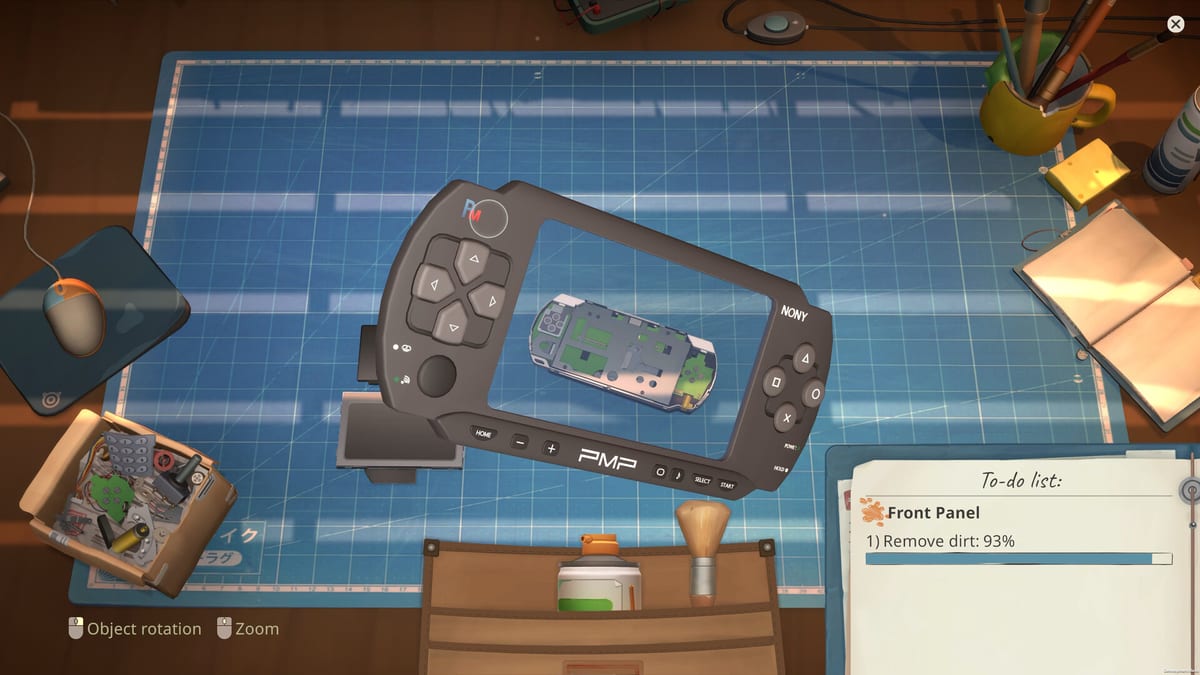
ReStory: Chill Electronics Repairs is built for mouse and keyboard on PC—the Steam page lists Windows support and Mandragora’s repair animations assume pointing, clicking, dragging, and scrolling at close zoom. Controller support, if added later, would be secondary; this guide reflects the release build players use on desktop alongside the gameplay video embedded above.
Learn controls early so How to Play routines feel natural: you will alternate between shop navigation, bench manipulation, and desktop browser tabs without a unified FPS control scheme.
Default control philosophy
The game favors direct manipulation over hotbar abstraction. You grab screws, panels, and tools with the cursor, rotate parts with modifier keys or on-screen prompts, and confirm actions with clicks. Contextual highlights show interactable edges when magnification is enabled—worth upgrading per Upgrade priority before flip-phone jobs on Device difficulty.
Precision mini-games—brushing corrosion, soldering traces, tightening hinges—scale with the repair difficulty slider added in the launch patch. Lower precision if you prefer narrative focus on Story choices; raise it for simulation depth matching Review praise of tactile repairs.
Shop floor and customer interactions
| Action | Typical input | Notes |
|---|---|---|
| Move / look | Mouse | Edge scroll near screen borders in some views |
| Interact / pick up | Left click | Hold for some drag operations |
| Cancel / drop | Right click or Esc | Drops may return items to tray if configured |
| Talk / advance dialogue | Left click | Use dialogue history after day-one patch |
| Open shop menu | UI buttons | Rent, upgrades, licenses |
Greet walk-ins fully before sprinting to the bench—dialogue choices at intake affect endings per Endings overview.
Repair bench controls
Bench mode zooms the camera close to devices:
- Rotate device — Middle mouse drag or assigned rotate key (check in-game Settings → Controls)
- Select tool — Click tool rack icons or number keys if bound
- Screw driver — Click screw heads; electric screwdriver speeds removal after Tool unlocks
- Brush / cleaner — Click-drag across marked corrosion
- Soldering — Click hotspots; post-patch solder behavior is more consistent per Launch patch
- Hint overlay — Accessible from UI when reassembly order confuses you; pair with How to Repair Devices
Mis-clicks often come from low magnification—upgrade lighting before blaming controls.
Desktop, email, and parts browser
Mid-2000s browsing is diegetic—you leave the bench for a CRT-style desktop:
- Mouse navigate — Click links in fictional marketplaces from How to Get Spare Parts
- Scroll — Mouse wheel through listings
- Email — Separate inbox UI for remote jobs referenced in First Days walkthrough
Inventory filters from the launch patch sort owned parts by category, type, condition, and quality—access through storage UI after upgrades from Workshop upgrades.
Dialogue history and manual save (launch patch)
The day-one update added major quality-of-life controls:
Dialogue history — Review past customer lines so you do not miss privacy cues for Hana or Kazuo. Open from the dialogue UI or pause menu depending on build; exact label may read “History” or similar in English.
Manual save and quit — Exit without relying solely on autosave checkpoints—critical before difficult return conversations on Characters arcs.
These features do not replace Steam Cloud if enabled, but local saves remain primary—back up folders noted in community guides when experimenting.
Camera, UI, and accessibility
- Zoom — Scroll wheel at bench; essential for hinge clips
- Pause / settings — Esc opens menus for audio, language, controls rebinding
- Repair difficulty slider — Accessibility section; lowers precision demands
- Subtitles — Recommended for noisy street ambient; audio rebalanced at launch
Localization improvements in the same patch cleaned UI strings across supported Steam languages including French, German, and Spanish builds.
Recommended rebinding habits
Most players keep defaults. Consider rebinding only if:
- Middle mouse fails on travel laptops—assign rotate to a keyboard key
- Accidental Esc cancels repairs—avoid aggressive remaps without testing
Document custom binds before guides reference defaults.
Steam Deck and controller play
ReStory targets mouse and keyboard on PC, but Steam Deck and gamepad players can run the game through Proton with caveats. If the game black-screens or fails DirectX checks on Deck, force Proton Experimental or Proton Hotfix and apply -dx11 launch options as described in Troubleshooting. Full hardware expectations sit on System requirements.
For bench rotation without a middle mouse button, use Steam Input → Mouse+Keyboard layout and map left trigger to the rotate action—community-tested but less precise than desktop for hinge clips on flip phones. Lower the repair difficulty slider from the launch patch if soldering feels too tight on a seven-inch screen.
Deck remains a comfort pick for narrative sessions; long repair marathons still favor desktop per Device difficulty feedback.
Controls versus checklist workflow
Use Parts checklist on a second monitor; in-game controls do not pause when alt-tabbing on borderless windowed mode. Borderless fullscreen reduces mis-clicks when returning to bench.
Related guides
- Beginner tips — pacing with default controls
- Walkthrough hub — story moments needing dialogue history
- Achievements — exploration habits using browser and email
- Tools hub — planners after you master bench inputs
Comfort with controls turns ReStory’s detailed teardown into meditation instead of wrestling match. Adjust precision, enable history, save manually—then let Tokyo ambience do the rest.
Frequently Asked Questions
Quick answers for ReStory players.
Does ReStory support controller on Steam launch?
PC release emphasizes mouse and keyboard for repair precision. Check Steam input settings for any experimental mappings your build adds.
Where is the repair difficulty slider?
Added in the launch-day patch under accessibility or gameplay settings. It adjusts mini-game precision independently from story choices.
How do I review past dialogue after the patch?
Use the dialogue history feature from the conversation or pause UI. It helps track privacy promises to Hana and reporting choices with Kazuo.
Can I rebind keys for bench rotation?
Yes via Settings → Controls. Defaults use middle-mouse drag; laptop users often assign a keyboard rotate key.